Troubleshooting
Here are some common issues that can occur when working with Microsoft Teams and Schedules:
Empty schedule or missing appointments
- Check the signed-in organization and work account.
- Compare global versus channel/chat scope with the person who created the plan.
- Check the selected date and calendar view.
- Open View, show all groups and apply the choice.
- Ask an administrator whether the person was archived. Archiving preserves appointments but removes the person from active planning.
Do not re-create missing data before confirming these checks.
Cannot edit or administrator pages are missing
Ask an administrator to check your role in this schedule, using the permissions matrix. Viewers are read-only. Self-Editors can edit only their own assigned appointments and cannot remove themselves. Adding a person to Team is not the same as granting app access. Outlook overlay appointments must be edited in Outlook.
Add or restore is disabled
Check the selection and the subscription's status, quantity and in-use count. Archived people need a free seat when restored. See Licensing.
Times differ between colleagues
Compare the timezone shown under View and the selection in My Settings. An unset selection uses the browser's timezone. Check the appointment's own timezone and whether it is all-day. Compare the same occurrence when investigating a recurring appointment. Do not move the appointment just to compensate for a display timezone.
Notifications or calendar updates do not arrive
For Teams/email, follow the two-account test and settings checks under Notifications. For an ICS feed, confirm you subscribed by URL rather than importing a file and wait for the receiving calendar to refresh. Do not paste the token-bearing URL into a support request.
Slow loading or clipboard unavailable
Temporarily disable Outlook in View and reopen the schedule. Test the same schedule in Teams on the web to distinguish client behavior from a wider issue. Clipboard availability depends on the host; create an appointment manually if Copy/Paste is unavailable. If the issue persists, use the support checklist.
Error Message: "There was a problem reaching this app"
This usually indicates a temporary issue with the Microsoft Teams Client or network access.
To verify this, you can open the app inside the browser: https://teams.microsoft.com/l/app/64efdfeb-781c-4c81-ab3a-fced212e50db?webjoin=true
If this doesn't work as well, please contact support@devsym.de
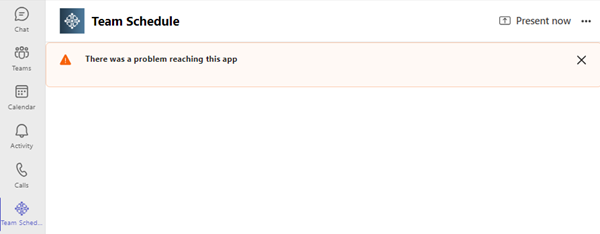
Admin Consent for Enterprise Application
If your organization requires admin consent for enterprise applications, a global administrator needs to grant consent in the Azure Portal. This is typically required when certain permissions need to be granted organization-wide.
How to Grant Admin Consent
Follow these steps to grant admin consent for the Schedules application:
- Sign in to the Azure Portal as a Global Administrator
- Navigate to Microsoft Entra ID (formerly Azure Active Directory)
- Go to Enterprise applications
- Find and select the Schedules application
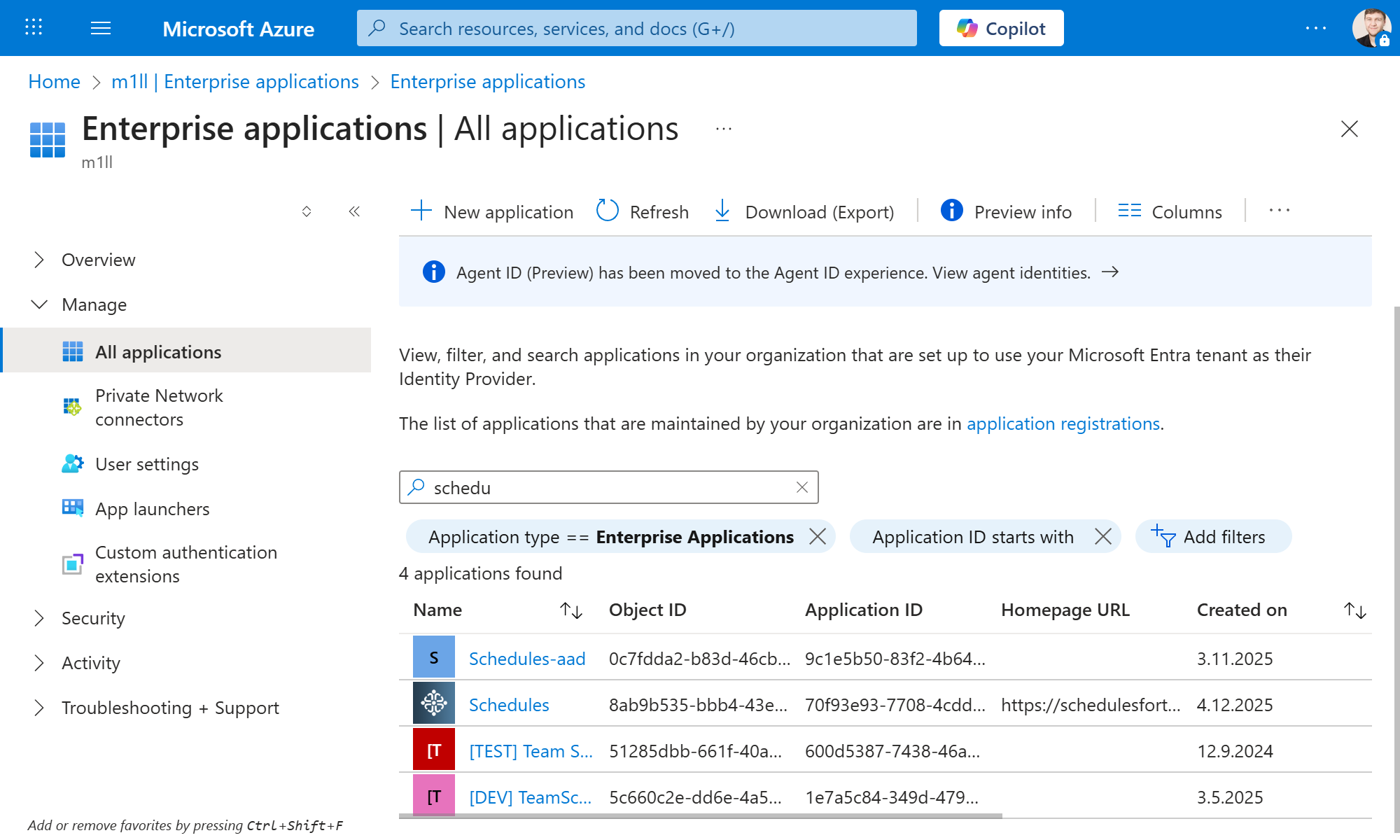
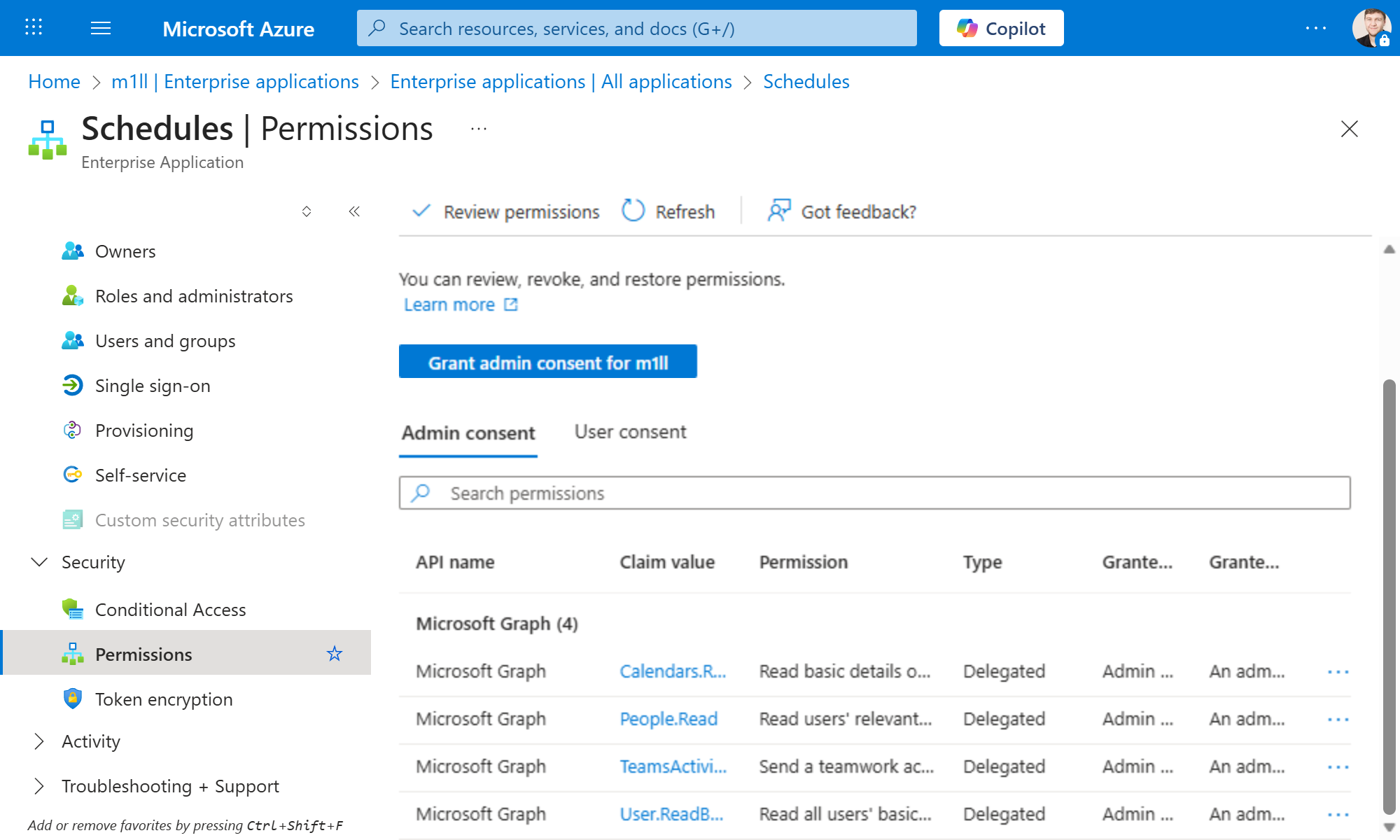
- Click on Permissions in the left sidebar
- Click the Grant admin consent button
- Review the requested permissions and click Accept
For a detailed walkthrough, watch this video tutorial:
Ask your Microsoft 365 administrator to review the requested permissions and use an account authorized to grant the required consent. Do not grant additional permissions merely to dismiss an error.
If you need assistance with granting admin consent, please contact support@devsym.de
App Not Visible in Teams
If users cannot find the Schedules app in their Microsoft Teams client, especially on mobile devices, this may be due to app setup policies in your organization.
How to Make the App Visible
Global administrators can make the app visible by adding it to the Teams app setup policy:
- Navigate to the Teams Admin Center - App Setup Policies
- Click on Global (Org-wide default)
- Click Add apps
- Search for the app name (e.g., "Schedules")
- Click Add
- Click Save
Watch this video tutorial demonstrating the complete process:
If the video does not play, you can download it here.
Changes to app setup policies may take a few hours to propagate to all users. Users may need to restart their Teams client to see the app.
If you still cannot find the app after following these steps, please contact support@devsym.de