Integrations and exports
Use the option that matches your goal:
| Option | Purpose | Important limit |
|---|---|---|
| Outlook overlay | See Outlook appointments beside Schedules appointments | Read-only in Schedules; details depend on directory/calendar access |
| ICS subscription | Show one person's Schedules appointments in another calendar app | One-way feed; refresh is controlled by the receiving app |
| Excel export | Share a snapshot of the scheduler's processed appointments | Not a full organization backup |
| Public API | Automate supported operations | Requires protected credentials and the current API reference |
Outlook overlay
Open View in the schedule and enable Outlook. Loading can take longer because additional calendar data is requested. Available details depend on permissions and calendar sharing. If unavailable, ask your Microsoft 365 administrator to review access and consent. Disable the overlay when diagnosing slow loading. Edit Outlook appointments in Outlook, not Schedules.
Subscribe with an ICS URL
Administrators and Viewers can generate a subscription URL:
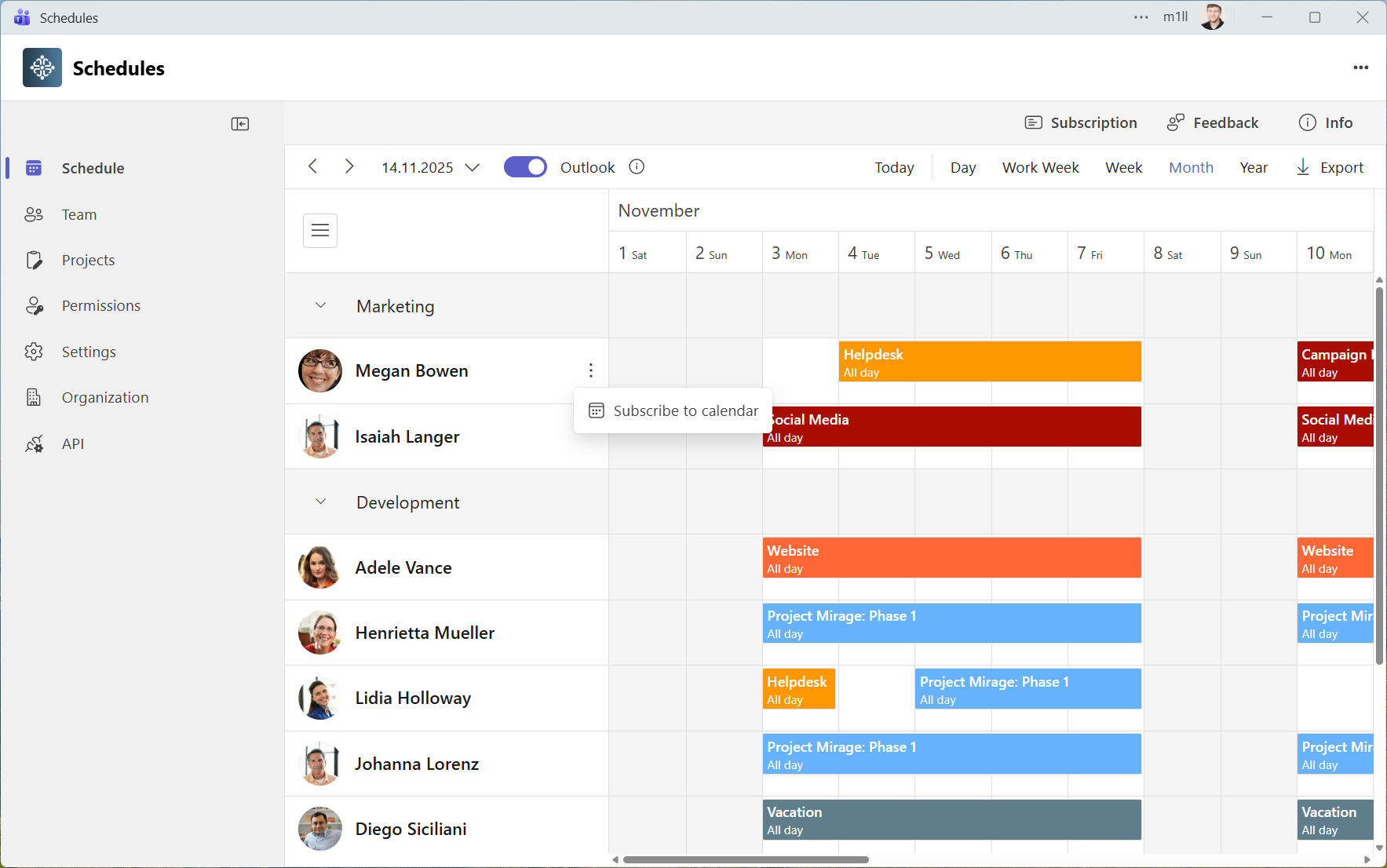
- In the schedule, open the three-dot menu next to the person's name.
- Choose Subscribe to calendar and copy the URL.
- In your calendar app, choose Subscribe from web/URL and paste the URL.
- Wait for the calendar app to fetch and display the feed.
This subscribes to that person's schedule, not the whole organization. Importing a downloaded file creates a snapshot; subscribing to the URL allows later refreshes. Changes in the receiving calendar do not write back to Schedules. Refresh intervals are chosen by Outlook or the other calendar app, so updates may not appear immediately.
- Outlook subscription instructions
- Google Calendar instructions
- Apple calendar subscription instructions
The full URL contains an access token. Anyone with it may retrieve the feed without signing into Teams. Treat it as confidential; do not post it in a channel, public document or support screenshot. If exposed, contact support for help invalidating it. Removing a subscription from a calendar app does not revoke the URL.
Export to Excel
Choose Export from the schedule toolbar. The .xlsx file contains:
Subject, StartTime, EndTime, Location, Description, IsAllDay, ProjectName and Person.
Project and person names are resolved from the current planning data; entries with no matching person are skipped.
Export uses the scheduler's processed appointments. Check the resulting dates and people before treating it as a report; it does not export every setting, permission or historical organization record. It is not a backup or an import file. Store it securely because it can include personal and appointment details.
API access
Administrators open API in the sidebar to view the API key (masked on screen by default; copying reveals the full key) and read the embedded API reference. Use that maintained reference for endpoints, authentication, request formats and scope parameters.
Keep credentials on a trusted server or in a secret store, never in a public page, browser bundle or source control. Test automation on a test schedule, handle failed requests explicitly and verify results in the app. For an exposed key or unclear permissions, contact Support before continuing.